Transferring Local Docsets
Bolt is designed to be compatible with Dash docsets. You can follow these instructions to transfer docsets from your Mac into Bolt.
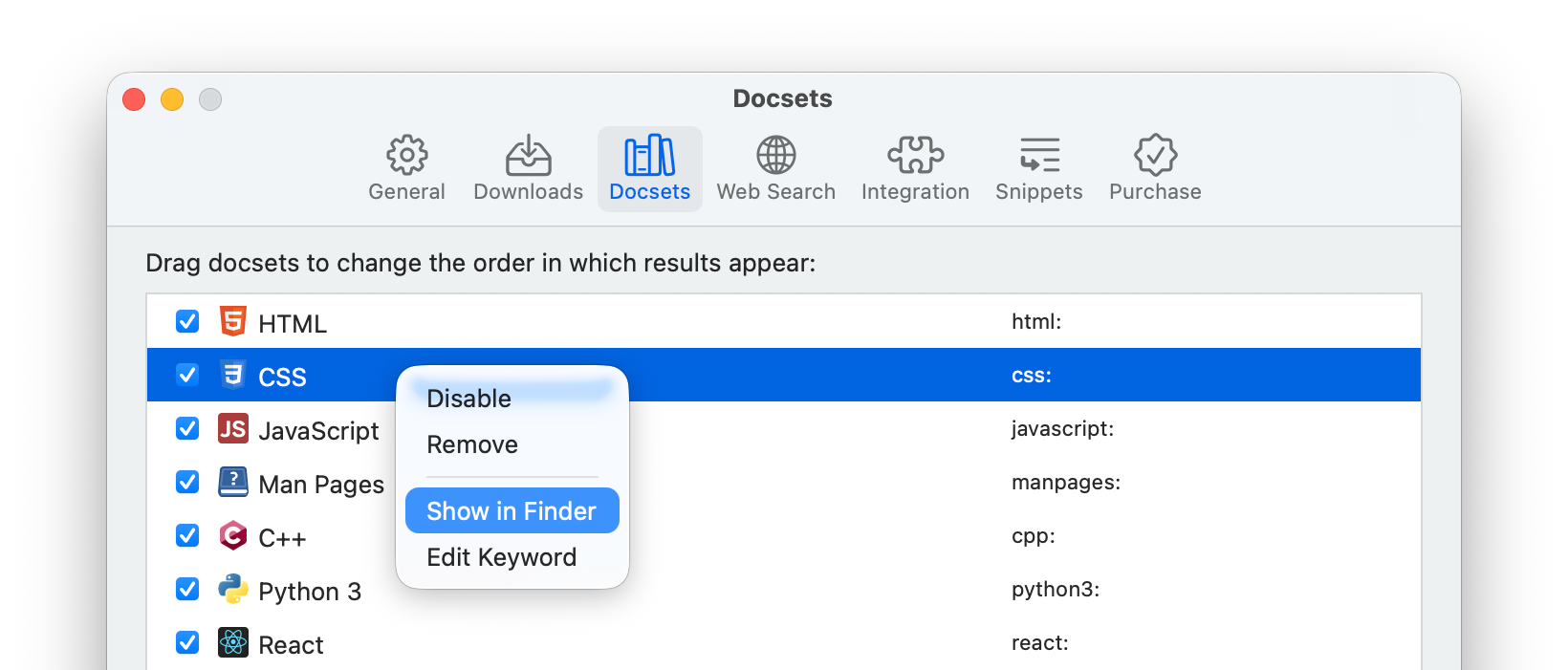
If you’re a Dash user, you can reveal installed docset bundles in Dash Settings > Docsets.
Import docsets from Files
Copy the docset bundle to your iPhone or iPad via iCloud Drive, AirDrop, or other methods.
Docset bundles are folders that may contain a large number of files. If you encounter problems transferring the docset, try archiving it before transfer and then unarchive it on your device.
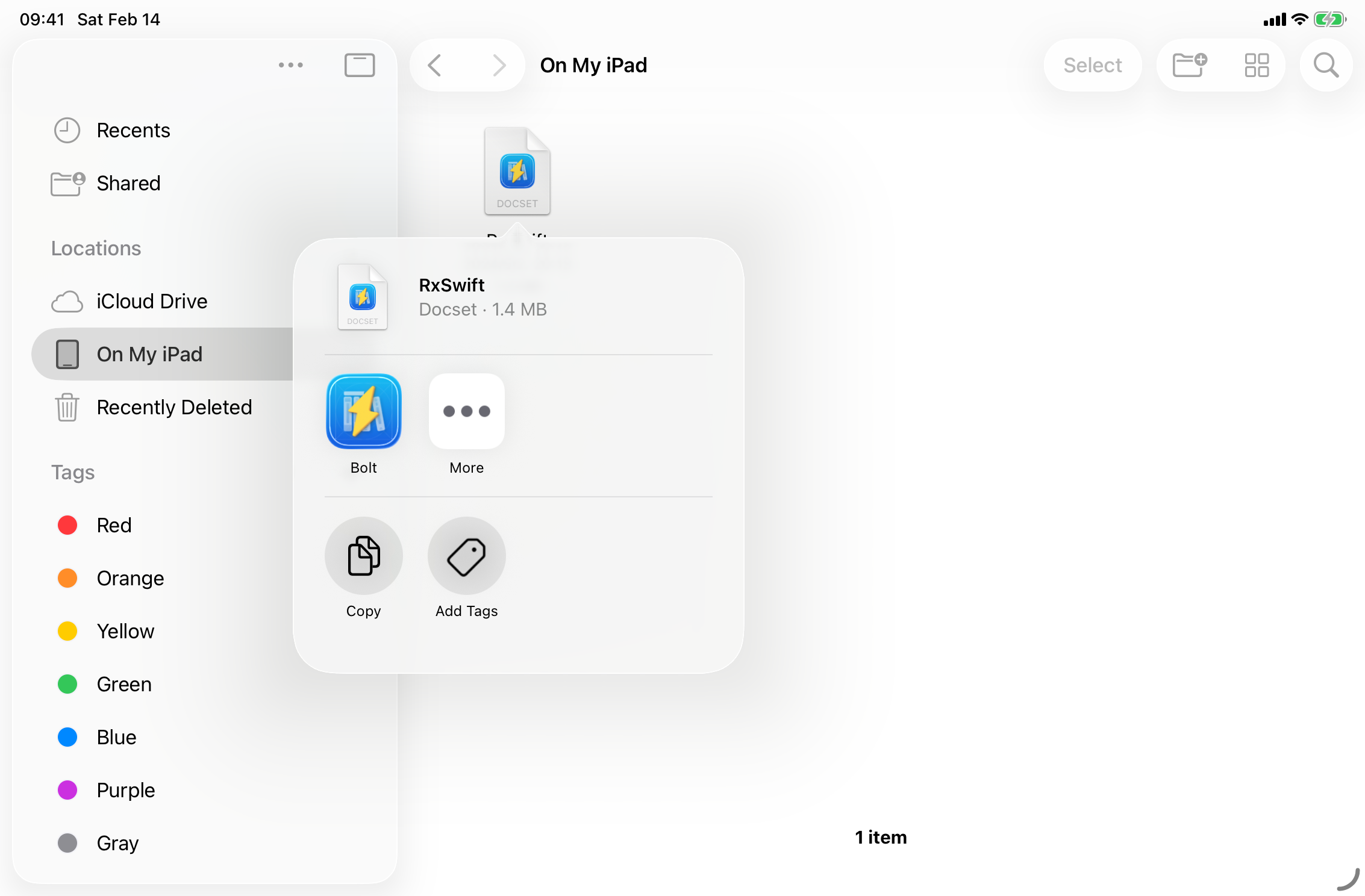
Once the docset is on your device, you can share it with Bolt from Files.
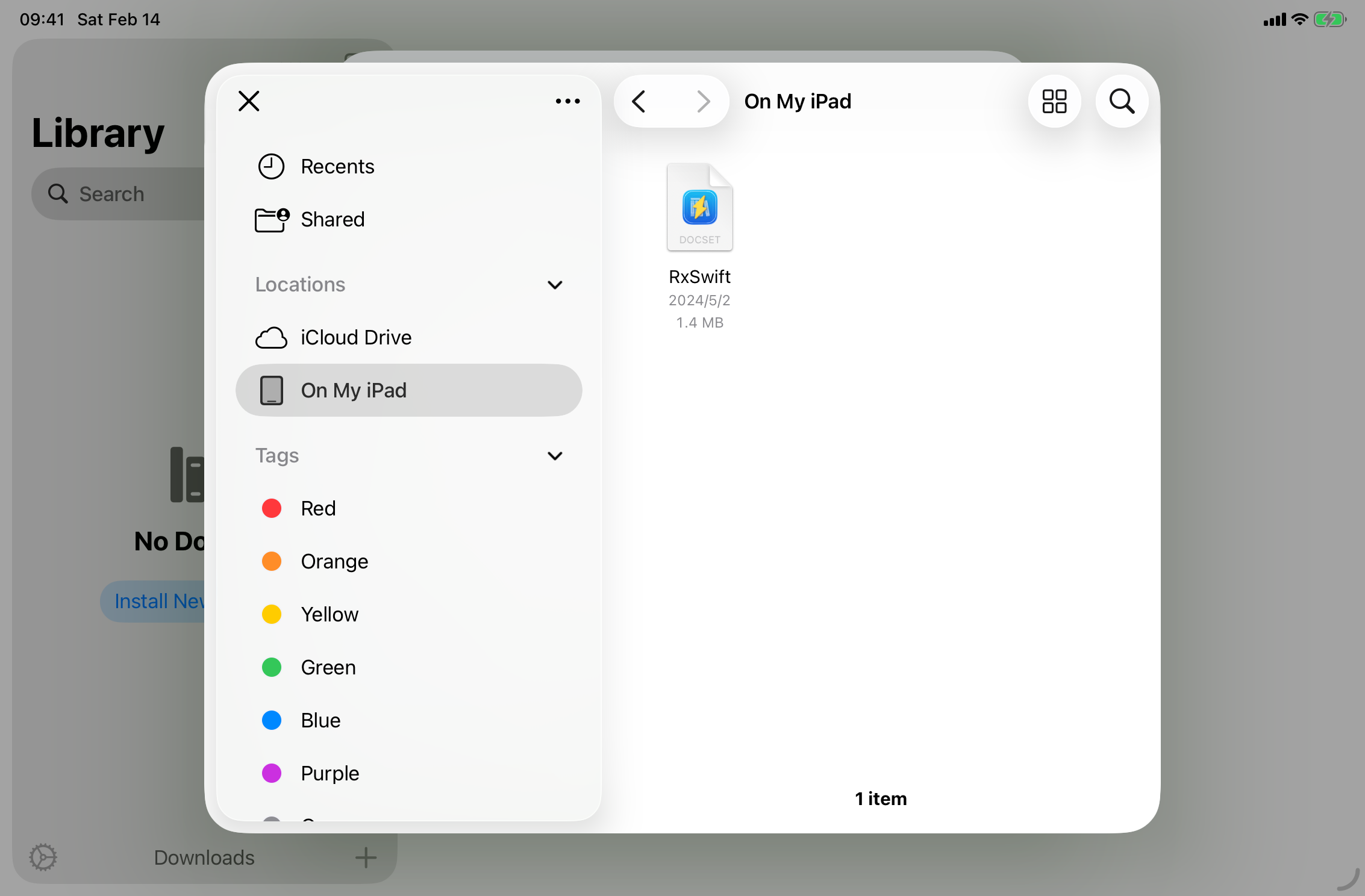
Or you can import it via Install New Docsets > Transfer from Files in Bolt.
Transfer docsets from Finder
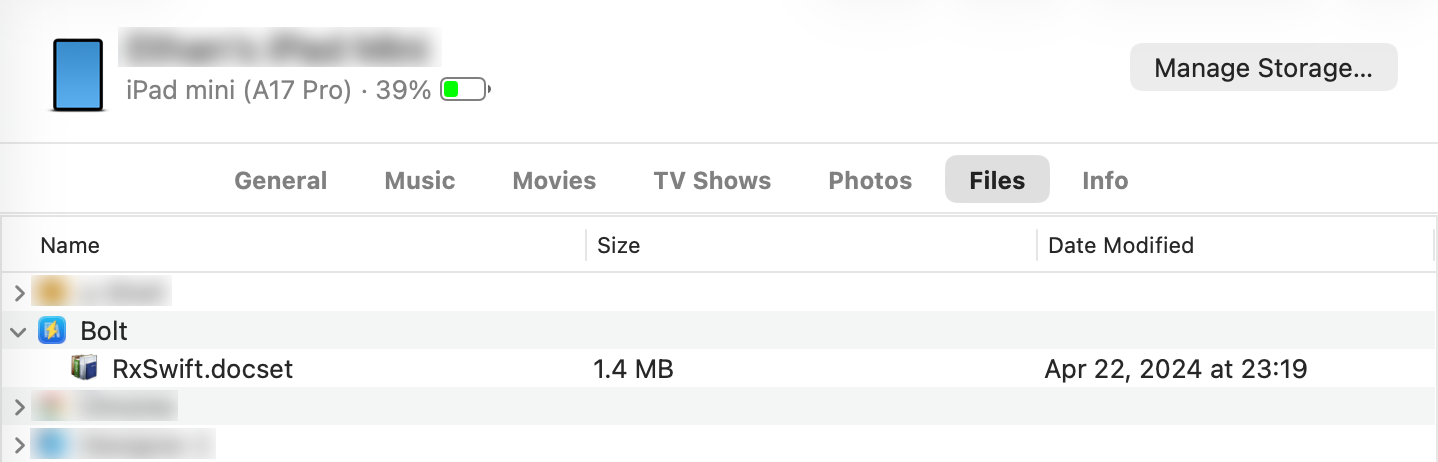
You can also transfer docsets directly from your Mac in Finder. Connect your device to your Mac with a cable, and select it in the Finder sidebar. After selecting Files and expanding Bolt, you can directly drag docset bundles into the list. Docsets will automatically show up in Install New Docsets > Transfer from Files in Bolt.